

DIY Guide
How to Program an NFC Tag
Got a blank NFC tag? Program it yourself in under 60 seconds. This step-by-step guide shows you how to write any link to an NFC chip using the free NFC Tools app.
Free App
Works on Any NFC Tag
Reprogrammable
No Technical Skills
What you'll need
Before you start, make sure you have:
A blank NFC tag
- Available from electronics suppliers, Amazon, or bulk from AliExpress
- Works with stickers, cards, keychains, wristbands
- Any NTAG213, NTAG215, or NTAG216 chip
An NFC-enabled smartphone
- iPhone 7 or newer (iOS 13+)
- Android 5.0+ with NFC capability
- NFC must be enabled in settings (Android only)
NFC Tools app (free)
- Download from App Store (iPhone)
- Download from Google Play (Android)
- No account or payment required
A link to program
- Your website URL
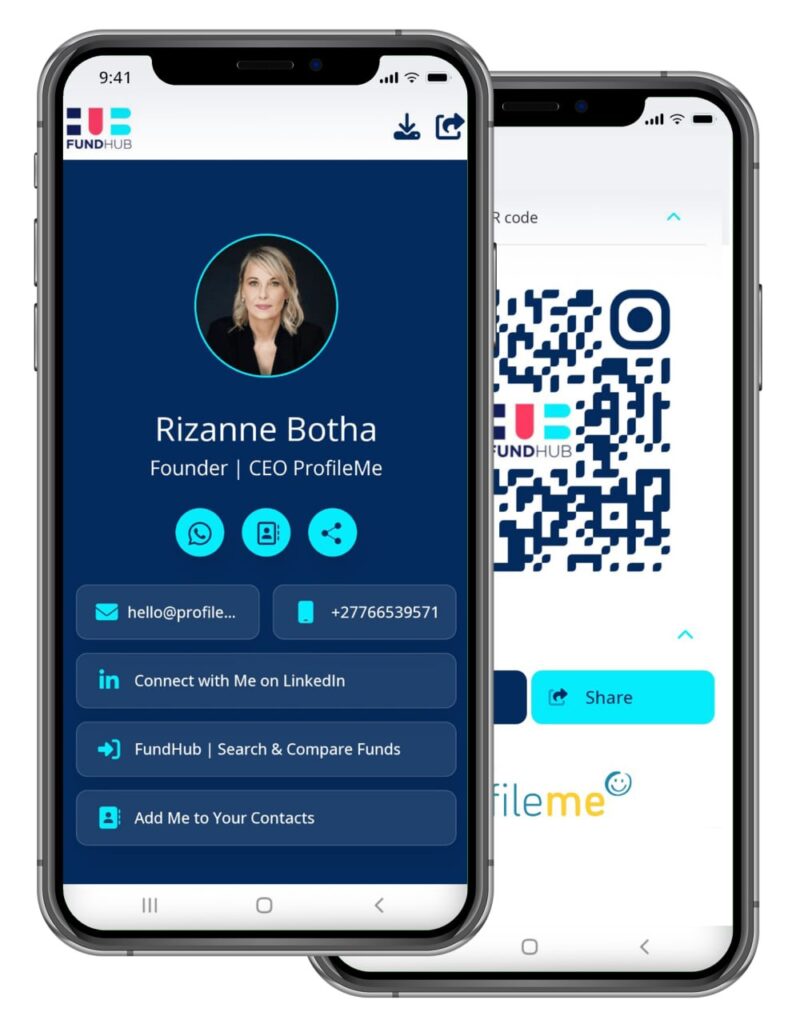
- Digital business card link (ProfileMe, Linktree, etc.)
- WhatsApp chat link
- Social media profile
- Booking page
- Any URL you want the tag to open
How to program your NFC tag
Follow these 7 steps to write your link to the NFC chip.
Download NFC Tools
Download the NFC Tools app on your smartphone.
iPhone:
- Open the App Store
- Search for "NFC Tools"
- Download the free app by wakdev
Android:
- Open Google Play Store
- Search for "NFC Tools"
- Download the free app by wakdev
The app is completely free with no in-app purchases required.
Add a URL record
In the Write tab, tap “Add a record”. You’ll see multiple options:
- Text, Email, Phone, SMS, Contact (vCard), And more...
- Select URL / URI.
Enable NFC (Android only)
If you’re on Android, you may need to enable NFC in your phone settings.
How to enable NFC on Android:
- Open Settings
- Go to Connected devices (or Connections)
- Look for NFC toggle
- Turn it ON
iPhone users: Skip this step. NFC is enabled by default on iPhone 7+.
Open NFC Tools app
Open the NFC Tools app on your phone. You’ll see three main tabs:
- Read — Scan existing NFC tags
- Write — Program new tags (this is what we'll use)
- Other — Advanced options (erase, lock tags)
Tap on the Write tab.
Enter your link
A text field will appear asking for your URL. Paste or type your link, for example:
- https://yourwebsite.com
- https://profileme.app/yourname
- https://wa.me/27766539571 (WhatsApp chat link)
- https://linkedin.com/in/yourprofile
Make sure the URL is complete (starts with https:// or http://). Tap OK or Save to add the record.
Write to the NFC tag
You’ll see your URL record listed in the Write tab. At the bottom of the screen, tap the blue “Write” button.
The app will prompt: “Approach an NFC tag”
NFC Tools app (free)
Hold the back of your phone against the NFC tag.
- iPhone: Hold the top edge of the phone (near camera) to the tag
- Android: Hold the middle/upper back of the phone to the tag
Hold steady for 1-2 seconds until you see:
- "Write complete!" or "OK, 1 record written"
Your NFC tag is now programmed! The tag will now open your link whenever someone taps it with their phone.
How to program an NFC tag
Follow along with this 60-second video tutorial.
See the complete process in action. This video shows you exactly how to use the NFC Tools app to write a URL to a blank NFC tag. No audio needed — the steps are shown visually with on-screen captions.
Best placement for NFC phone tags
Where you stick the tag matters — here’s how to avoid accidental triggers. If you’re attaching an NFC tag to the back of your phone, placement is critical.
- But we kept hearing the same problem.
Best placement: Bottom of your phone Why?
Most phones read NFC from the top or middle of the device. If you place the tag too close to your phone’s NFC reader, it can cause:
- The same technology powering every card
- Poor tap control (hard to control when it activates)
- Interference during normal phone use
Recommended setup:
- Stick the NFC tag at the bottom of your phone (below the camera)
- When someone taps, they hold the top of their phone to your tag
- This gives you full control over when the tag activates
Where to tap (iPhone vs Android):
iPhone
- NFC antenna is at the top/back (near camera)
- Tap the top edge of their iPhone to your tag
Android
- NFC antenna is usually at the middle or upper-back
- Tap the back center of their phone to your tag slowly
Pro tip: Tell people to move their phone slowly across the tag until it vibrates or opens the link.
Test your NFC tag in 30 seconds
Before you start using your NFC tag, test it to make sure everything works correctly.
Testing checklist:
1.
Tap with another phone
Use a different phone (or ask someone nearby), tap their phone to your NFC tag, and confirm the correct page opens.
2.
Test all buttons and links
If your link goes to a digital business card, test all buttons. Make sure WhatsApp, email, phone links work. Check that all social media links are correct.
3.
Save the contact (if applicable)
If your link includes a vCard or contact save button, test it. Confirm the contact saves correctly to the phone.
4.
Test using mobile data (not WiFi)
Turn off WiFi on the test phone and use mobile data instead. This simulates real-world conditions (most people tap in meetings, events, not on WiFi).
5.
Try through a phone case
If you use a phone case, test tapping through it. Most cases work fine, but thick or metal cases can block NFC. If it doesn’t work, remove the case or reposition the tag.
If everything works, your NFC tag is ready to use!
Can you reprogram an NFC tag?
Yes. You can erase and reprogram your NFC tag as many times as you want (unless it’s locked see below).
When you might need to reprogram:
- You changed jobs and need to update your link
- You want to switch from one digital business card to another
- You want to point the tag to a different website
- You made a mistake when programming the first time
How to reprogram an NFC tag:
1
Open NFC Tools app
2
Go to the Other tab
3
Tap "Erase tag"
4
Hold your phone to the NFC tag (same as writing)
5
Wait for "Erase complete" confirmation
6
Go back to the Write tab
7
Add your new URL (same process as before)
8
Tap Write and hold your phone to the tag again
Your NFC tag will now open the new link.
⚠️ Important note about locked tags
- Some NFC tags can be permanently locked after programming. Once locked, they cannot be erased or reprogrammed.
- In the NFC Tools app, there’s an option called “Make read-only” — DO NOT enable this unless you’re absolutely sure you’ll never need to change the tag.
- Default behavior: Tags are rewritable (not locked) unless you manually lock them.
Best use of an NFC tag
You can program your NFC tag to open anything. Here are the most common uses.
Digital business card
ProfileMe, Linktree, Beacons, Card
Best for networking, professional use. Visitors can save your contact, view all your links.
Website
Your personal website, company website, or portfolio/online resume.
Social media profile
LinkedIn profile, Instagram account, Facebook page, TikTok, YouTube, or Twitter.
WhatsApp chat link
Format: https://wa.me/27766539571 (replace with your number)
One tap opens WhatsApp chat with you. Best for customer support, quick contact.
Booking page
Calendly, Cal.com, Google Calendar booking link
Let people book time with you instantly. Great for consultants, coaches, service providers.
Menu, pricing, or PDF
Restaurant menu, service pricing sheet, product catalog, or portfolio PDF.
Video or media
YouTube video, showreel, product demo, or explainer video.
Best practice: Use a digital business card link
Instead of linking to a single page (like LinkedIn or your website), link to a digital business card that has:
- All your contact info in one place
- Multiple links (website, social media, portfolio)
- Contact save button
- Update anytime without reprogramming the tag
With ProfileMe, you can:
- Share all your details in one link
- Update anytime (no need to reprogram tag)
- Add WhatsApp, email, phone buttons
- Track who viewed your profile
- Add lead capture forms
Enterprise Questions
NFC tag not working?
Common issues and how to fix them.
Symptoms:
Nothing happens when you tap your phone to the tag
No vibration, no link opens, no notification
Try this:
Turn NFC ON (Android only) — Check Settings → Connected devices → NFC
Tap the back of the phone — Not the screen, the back where the NFC antenna is
Move slowly — Don't tap quickly; hold steady for 1-2 seconds
Remove thick or metal cases — These can block NFC signals
Try another phone — Test with a different device to isolate the issue
Check if tag is damaged — Physical damage can break the chip
Symptoms:
NFC Tools app says "Write failed" or "Tag not found"
Can't complete the programming process
Try this:
Hold phone steady for 1-2 seconds — Don't move while writing
Ensure URL format is correct — Must start with https:// or http://
Try erasing tag first — Go to Other → Erase tag, then try writing again
Check if tag is locked — If tag was previously locked, it cannot be rewritten
Try a different tag — The tag may be defective
Symptoms:
Tag opens a different link than expected
Opens old link after reprogramming
Try this:
Erase and reprogram — Completely erase the tag, then write the new URL
Check for multiple records — Make sure you only have ONE URL record in NFC Tools
Test on multiple phones — Some phones cache NFC data
Symptoms:
Android phones read the tag fine
iPhones don't respond
Try this:
Use iPhone 7 or newer — Older iPhones don't support NFC tag reading
Update to iOS 13+ — NFC tag reading requires iOS 13 or later
Tap the top edge — iPhone's NFC antenna is at the top, near the camera
Make sure URL is encoded correctly — Some special characters can cause issues
Symptoms:
Tag works inconsistently
Sometimes opens, sometimes doesn't
Try this:
Check tag placement — Make sure it's not too close to metal, magnets, or other NFC chips
Test in different locations — Some environments have interference
Ensure tag is flat — Bent or damaged tags can have intermittent connectivity
Use higher quality tags — Cheap tags from AliExpress can be unreliable
Common questions about programming NFC tags
Download the free NFC Tools app from the App Store. Open the app, go to the Write tab, tap "Add a record" → "URL / URI", paste your link, tap Write, then hold the top of your iPhone near the NFC tag for 1-2 seconds.
First, enable NFC in Settings → Connected devices → NFC (turn ON). Then download the NFC Tools app from Google Play. Open the app, go to Write, add your URL, tap Write, and hold the back of your phone to the tag.
No. Once your NFC tag is programmed, anyone can scan it without downloading any app. Their phone's built-in NFC reader will automatically open the link in their browser. The NFC Tools app is only needed to program the tag, not to scan it.
Yes, you can erase and reprogram NFC tags as many times as you want — unless the tag is locked.
In the NFC Tools app, there's an option called "Make read-only" that permanently locks the tag. Don't enable this unless you're sure you'll never need to change it.
You can store:
- URLs (websites, digital business cards, social media)
- Text (plain text messages)
- Contact info (vCard format)
- Phone numbers (tap to call)
- Email addresses (tap to compose email)
- WiFi credentials (tap to connect to network)
- And more (SMS, location, app links)
The most common use is URLs linking to a website or digital business card.
If someone's phone doesn't have NFC (very rare, only very old or budget phones), you can do the following:
- Print a QR code as a backup (many digital business card platforms generate both NFC and QR)
- Share your link manually (via text message, email, WhatsApp)
Fun fact: Our pre-programmed NFC cards include a QR code backup printed on the card, so they work on 100% of phones.
It depends on the chip type:
- NTAG213: 144 bytes (~140 characters)
- NTAG215: 504 bytes (~500 characters)
- NTAG216: 888 bytes (~880 characters)
For most uses (storing a URL), even the smallest chip (NTAG213) is more than enough. A typical URL is 30-100 characters.
Yes, but it's not recommended for business cards.
NFC Tools allows you to lock tags with a password, but this means people scanning your tag will need to enter the password before it opens — which defeats the purpose of "one-tap sharing."
Password protection is useful for access control (unlocking doors), not for business cards.
You can buy blank NFC tags from:
- Amazon (search "NTAG213 NFC tags" or "NFC stickers")
- AliExpress (bulk orders, cheaper but slower shipping)
- Electronics suppliers (local stores in South Africa)
- Our shop (we sell pre-programmed tags, but also offer bulk blank tags on request)
Make sure to buy:
- NTAG213, NTAG215, or NTAG216 chips
- Compatible with iPhone and Android
- Not locked or pre-encoded
DIY programming is best if:
- You already have blank tags
- You want to experiment and learn
- You need to reprogram tags frequently
- You're on a tight budget
Pre-programmed cards are best if:
- You want professional-looking cards (custom logo, premium finish)
- You don't want to deal with setup and testing
- You need cards for your entire team (bulk orders)
- You want guaranteed reliability (tested and quality-checked)
Our pre-programmed NFC cards:
- Custom branded with your logo
- Premium PVC card with spot UV finish
- QR code backup included
- Free vCard (works without subscription)
- Tested and ready to use
Skip the DIY and get pre-programmed NFC cards
Custom branded, tested, and ready to use. No programming required.
Programming your own NFC tags is free and flexible, but it requires:
- Buying blank tags
- Downloading apps
- Testing and troubleshooting
- No professional branding
Our pre-programmed NFC cards include:
Professional Design
- Custom branded with your logo
- Premium PVC card (credit card size)
- Full-color satin print with spot UV varnish
- Luxury feel, premium finish
Ready to Use
- Pre-programmed and tested
- QR code backup included
- Works on iPhone and Android
- No setup required
Free vCard Included
- Hardware works standalone
- One tap saves your contact
- Update anytime without reprinting
Optional Digital Features
- WhatsApp direct link
- Lead capture forms
- Profile analytics
- Home screen app install
Generic NFC Phone Tag
R199
Ships 48 hours
Pre-programmed with basic NFC tag functionality
Custom NFC Card
R499
Ships 5-7 days
Your logo, full branding, premium finish
Custom Bulk Tags
From R99
/unit (min 10 units)
Perfect for teams and corporations
Ready to program your NFC tag?
Download NFC Tools and start programming. Or skip the setup and buy pre-programmed cards from us.